Print-on-demand order management, automated

Download and split your orders, add the artwork and print details, and submit them to the right printers automatically, with tracking sent back to your store when they ship.

  • Artwork added to every order
  • Dozens of print providers
  • 5-star support

Risk-free, 30-day trial that includes full access to Order Desk!

"It can stitch together anything to anything (different selling channels different fulfillment providers, on-demand printers, etc.)."

Goldleaf, Shopify App Store review

"…none of the ones I had trialed ever had the flexibility we needed or would pull over the required line item properties from Shopify for our highly customized products."

Murphy Door, Inc., Shopify App Store review

"Order Desk allows you to easily create flexible custom logic to solve specific problems for your business."

Throughline Coffee Co., Shopify App Store review

There's a better way to run your print-on-demand business

The Old Way

  • Pasting artwork links into every order
  • Sorting orders by printer by hand
  • Copying tracking back to your store

The New Way

  • Print details added to orders automatically
  • Orders split and sent to the right printer
  • Tracking synced back when they ship

Built for print on demand

Save your print details once, and Order Desk handles every order from checkout to the printer.

Add Print Details Automatically

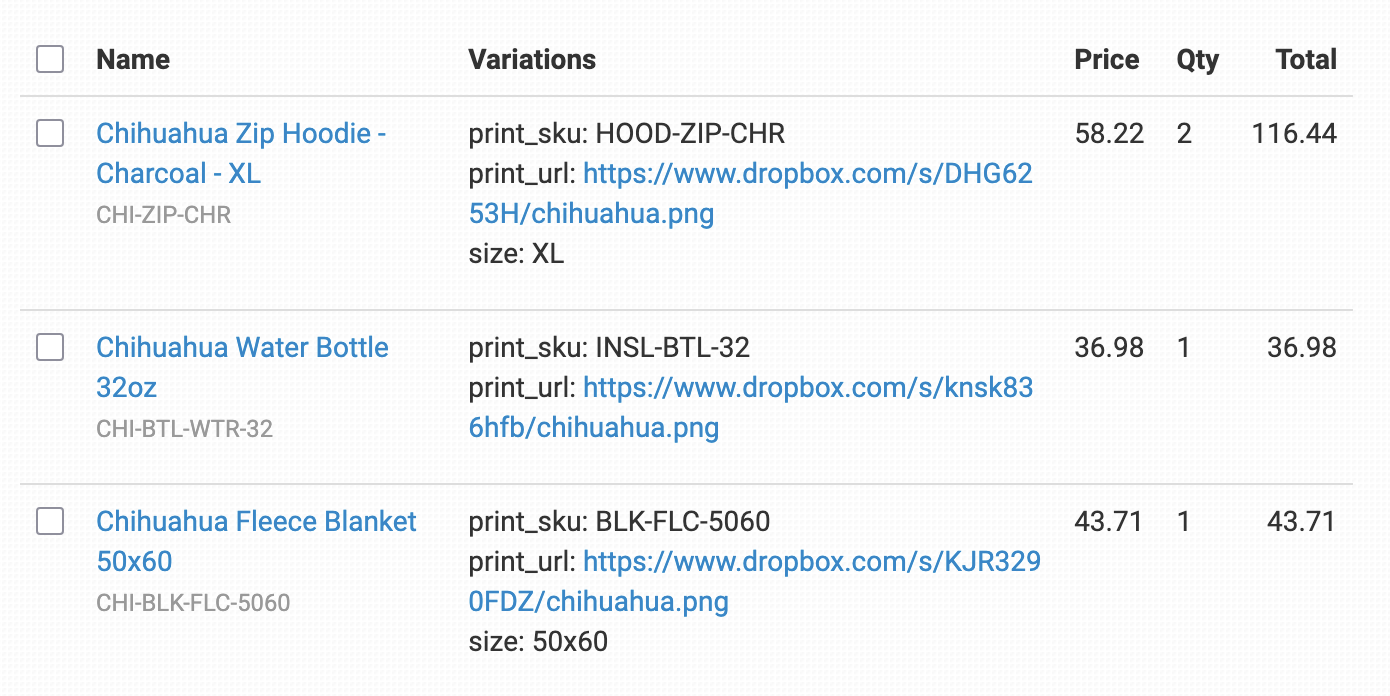
Store each product’s code and artwork URL on its inventory item, or import them by CSV, and they sync into every order as it downloads.

Route To The Right Printer

Split orders by printer and submit each part automatically. Match product codes to send the same product to more than one printer.

Every Feature, Every Plan

Every plan includes all integrations, and our transparent pricing adapts to your volume. Adding another printer doesn’t mean buying another module.

Every print order, organized and on its way

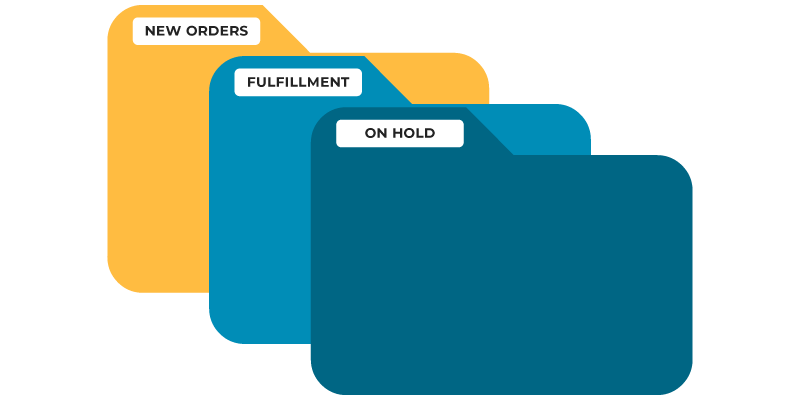
Orders arrive with their product codes and artwork already attached, then move through the folders you set up as they’re split and submitted to each printer.

Start your free trial

Screenshot of the Order Desk app

From checkout to printer, handled

1

Save your print details once

Store each product’s code and artwork URL on its inventory item, or import many at once from a CSV. With Add Inventory Details to Order Items on, they sync into every order.

How inventory details sync →
2

Split across printers

Orders split by the printer saved on each item, and each part is submitted automatically. Match Product Codes lets you send the same product to more than one printer.

How to split orders between printers →
3

Handle colors and bundles

Convert color variations between printers, or turn one SKU into a bundle of several product codes.

Color conversion and bundles →
4

Skip what a printer shouldn’t get

Add SKUs to Product Code Skip and they won’t be sent to that print provider.

How Product Code Skip works →
5

Tracking flows back

After an order is sent, Order Desk checks for shipment notifications, adds tracking when the printer ships, and syncs it back to your store.

How submissions and tracking work →
6

Fix and resend

Every submission is logged in the order’s history, so if something goes wrong you can fix the details and resend.

How to fix and resubmit an order →

Get your print-on-demand orders flowing in three steps

Automating print-on-demand fulfillment comes down to three steps, and you only have to set up your print details once.

Create your store

Set up your Order Desk store in 5 minutes or less, then start bringing in orders from your shop.

Complete the onboarding

Our onboarding wizard covers the basics, so you can get to the important part: adding your product codes and artwork.

Connect your store and printers

Connect your store and print providers, add your print details, then turn on rules to send orders automatically. We recommend submitting manually for the first few days.

One Minute Product Demo

See Order Desk in action

One minute is all it takes to see how Order Desk handles the repetitive side of order management.
Order Desk Insiders

Join our free community

Ecommerce pros and Order Desk users are swapping strategies, troubleshooting workflows, and staying ahead of industry trends together in our exclusive Facebook group, Order Desk Insiders.

Print on demand with Order Desk FAQs

Connect your store and your print provider to Order Desk, then save each product’s code and artwork URL on its inventory item. With Add Inventory Details to Order Items turned on, those details sync into every new order, and an Order Rule triggered by “Order is Imported” submits it. See the print on demand fulfillment walkthrough.

Yes. Order Desk can split orders by the printer saved on each item and submit each part to the right provider. With Match Product Codes, you can also set up the same product to be sent to more than one printer.

Order Desk integrates with dozens of print providers, including Printify, Printful, Gelato, Gooten, Prodigi, SwiftPOD, and Monster Digital. See all integrations.

Import a CSV with each product’s name, your SKU, the product code, the artwork URL, and the printer name. Order Desk saves those details on your inventory items so they’re added to future orders automatically.

Yes. After an order is sent to a printer, Order Desk checks for shipment notifications and adds the tracking details when the printer ships. It can then sync tracking back to your store, including Shopify, Etsy, WooCommerce, and TikTok Shop.

Pricing is published on our pricing page, and every plan includes all integrations, so adding another printer doesn’t mean buying an add-on. New stores get a 30-day free trial with full access.

Ready to automate?
Start your risk-free 30-day trial today.