If you catch yourself making the same click on every order, that’s usually a sign a rule could be doing it for you.
But even experienced Order Desk users can build a rule that looks completely right… and then watch it do absolutely nothing.
In our August 2026 webinar, Zain and Kael from the support team walked us through the Rule Builder step by step, from how rules work to the common mistakes that can trip you up. They also shared how to automate the repetitive stuff while keeping your workflow simple.
Watch the full webinar replay here, or keep reading for the key takeaways.
First, what is a rule?
A rule tells Order Desk:
When this happens, check for these conditions, then do this.
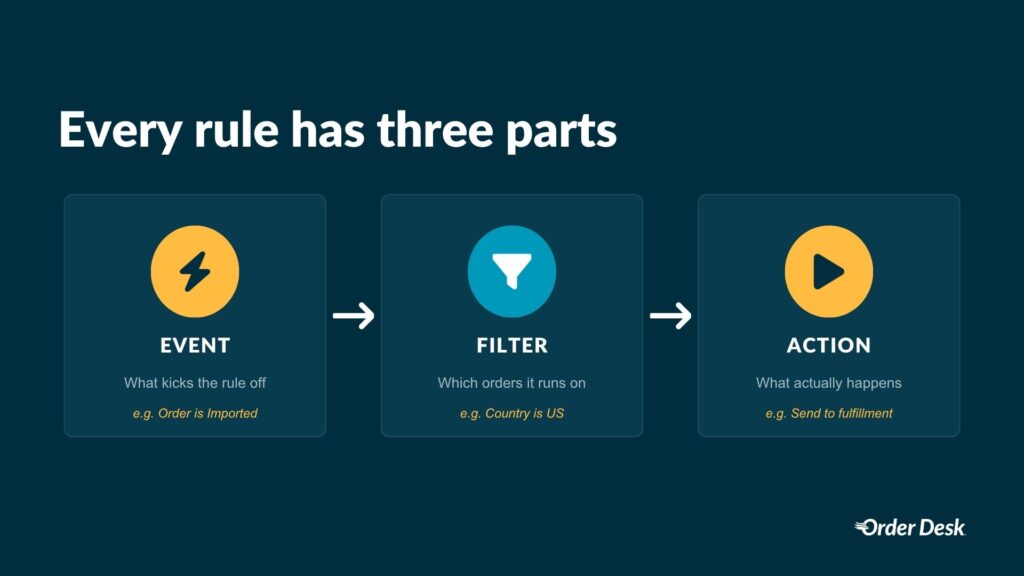
In Order Desk terms, that breaks down into three parts:
- Event: What starts the rule
- Filter: Which orders, items, or shipments it should apply to
- Action: What it should do next
For example:
- Event: An order is imported
- Filter: The shipping country is Canada
- Action: Send the order to your Canadian fulfillment provider
That’s the basic structure behind every rule.
Once this clicks, the Rule Builder starts feeling much more comfortable. You’re really just answering three questions: What happened? Which orders does this apply to? What should happen next?
Choose the right rule type
Before you start adding events and filters, you’ll need to choose what your rule acts on.
Order Desk has three rule types:
Order Rules
These act on the entire order.
Use them to route an order to fulfillment, move it to a folder, add a tag, send an email, or perform another action that applies to the order as a whole.
Order Item Rules
These act on individual line items inside an order.
They’re useful when you need to target a specific product, SKU, variation, or piece of item metadata without affecting everything else in the order.
Shipment Rules
These act on shipment information and run when a shipment is added to an order.
Choosing the wrong rule type is one of those tiny mistakes that can make you scratch your head when your rule refuses to cooperate.
If you’re trying to filter individual products but you selected an Order Rule, for example, you won’t see the item-level filters you need. Always start by asking what you want the rule to act on: the order, an item, or a shipment.
Events: what starts the rule?
The event is the moment Order Desk says, “Okay, time to run this rule.”
There are three kinds of events you can use.
Regular events
These are available to every store and cover the moments most workflows are built around.
Examples include:
- Order is Imported
- Folder is Changed
- Order is Created Manually
- Shipment is Added
There are around 20 more, but you get the idea.
Integration-specific events
These appear when a particular integration is active in your store.
You might see events such as:
- After Order Submitted to Amazon MCF
- Order Canceled at ShipStation
- Shopify Authorization is Captured
If the relevant integration isn’t enabled, its events won’t appear in the Rule Builder.
Custom events
Custom events give you more control over when a workflow runs.
A Custom Button creates a button you can click manually on an order. This works well when the action should only run after someone has reviewed the order.
A Custom Event can run on a schedule, making it useful for batch workflows or processes that don’t need to happen immediately.
One very important detail: events do not run retroactively.
If you create a rule using “Order is Imported,” it will run when new orders are imported from that point forward. It won’t go back and apply itself to orders already sitting in your store.
Filters: AND vs. OR
This is where a perfectly reasonable-looking rule can sabotage you.
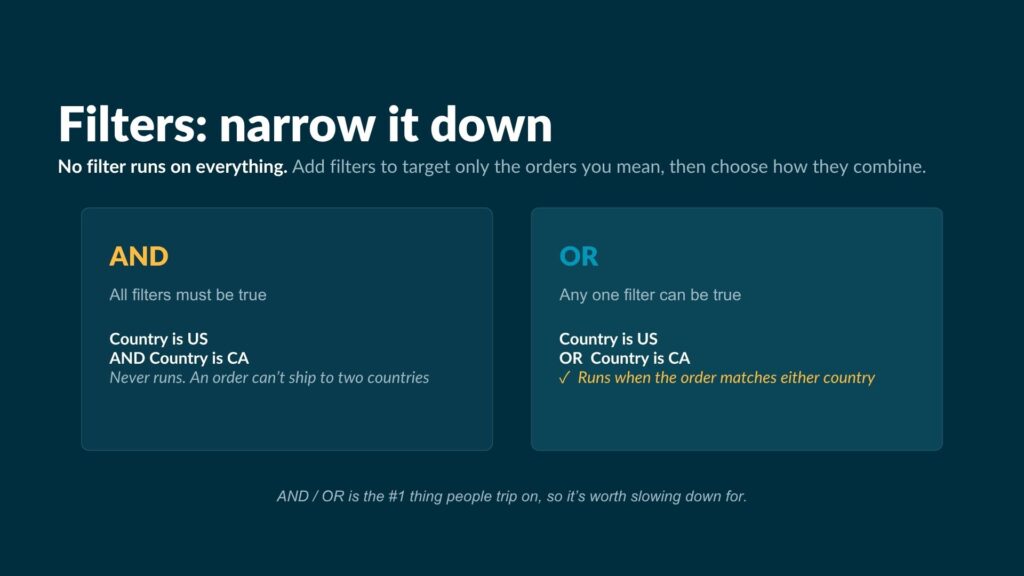
When a rule has multiple filters, you need to decide whether they should be connected using AND or OR.
AND means every condition must be true
Let’s say your filters are:
- Shipping Country is US
- AND
- Shipping Country is CA
That rule will never run because one order can’t have both countries as its shipping destination.
OR means any condition can be true
Change the filters to:
- Shipping Country is US
- OR
- Shipping Country is CA
Now the rule can run for orders shipping to either country.
This mistake usually appears when someone is trying to match several countries, SKUs, products, or vendors and connects them with AND.
The rule looks fine, but everyone stares at it for 20 minutes.
If a rule isn’t firing, check your AND/OR setting before pulling the whole thing apart.
What can rules actually do?
Quite a lot.
Route orders to fulfillment
Send an order to the correct 3PL, print provider, warehouse, Amazon MCF account, ShipStation store, or another connected service.
If you work with multiple fulfillment partners, rules can decide where each order belongs without your team manually checking every item.
Move orders into folders
Automatically organize orders by status, vendor, sales channel, or whether they need manual attention.
For example, an order missing important information could be moved into a review folder before it reaches fulfillment.
Add color tags
Color tags make important orders easier to spot in a busy queue.
You could tag high-value orders, expedited orders, international orders, or anything else your team needs to notice quickly.
Email customers
Send confirmations, delay notices, shipping updates, or other messages that would otherwise need to be sent manually.
Generate PDFs
Create packing slips, pick lists, or other documents using the information on the order.
Split orders
Separate items that need to be sent to different vendors or fulfillment services. We’ll get into this one properly below because splitting has a few extra moving parts.
A good place to start is with any action your team repeats across dozens or hundreds of orders. If someone is clicking the same button all day, the Rule Builder deserves a look.
A few real-world examples
Route products by vendor
You sell products fulfilled by three different suppliers.
Instead of checking every incoming order and manually sending each product to the correct supplier, a rule identifies the item and routes it automatically.
Your orders keep moving, and nobody needs a spreadsheet open just to remember who fulfills what.
Flag high-value orders
Create a rule that adds a color tag when an order exceeds a certain value.
Your team can spot it immediately and give it any extra review or handling it requires.
Hold orders with missing information
If an order arrives without a complete address or another required detail, a rule can move it into a review folder.
The issue gets caught before the order reaches fulfillment and becomes a much more annoying issue.
Common reasons a rule doesn’t work
When a rule refuses to fire, the Rule Builder usually isn’t being mysterious for fun. A small part of the setup is normally responsible.
The rules are in the wrong order
Rules run from top to bottom.
If one rule changes information that another rule relies on, their position in the list matters. The first rule must finish before the next one can act on the updated order.
The capitalization doesn’t match
Some operators, including Equals and In List, are case-sensitive.
If the filter is looking for “Blue” but the order contains “blue,” the values won’t match.
Capital letters: tiny things, enormous capacity for wasting an afternoon.
The event already happened
A new “Order is Imported” rule won’t run on orders imported before the rule existed.
It will only apply to orders that trigger that event going forward.
AND should have been OR
If you’re matching multiple possible countries, SKUs, or values, check whether the filters are connected correctly.
You may only need one condition to be true, not all of them.
How to split an order
Sometimes one order contains items that need to go to completely different places.
A shirt might go to one print provider, a framed poster to another, and the remaining item to your own warehouse. Sending the full order to every vendor would be… less than ideal.
A split rule separates the original order into multiple orders so each set of items can follow the correct workflow.
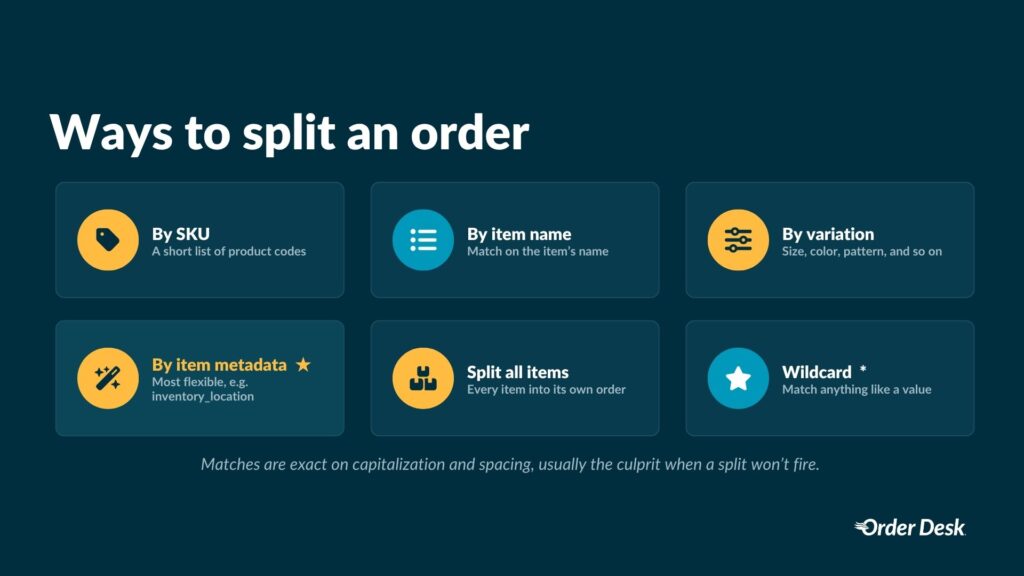
You can split an order using:
- SKU
- Item name
- Variation, such as size, color, or pattern
- Item metadata
- Wildcard patterns
- Every item, placing each one into its own order
Capitalization and spacing need to match exactly.
If your split rule is looking for “Blue Widget” but the incoming item is called “blue widget,” it won’t match. This is one of the first things to check when a split appears to do absolutely nothing.
Use two rules when splitting orders
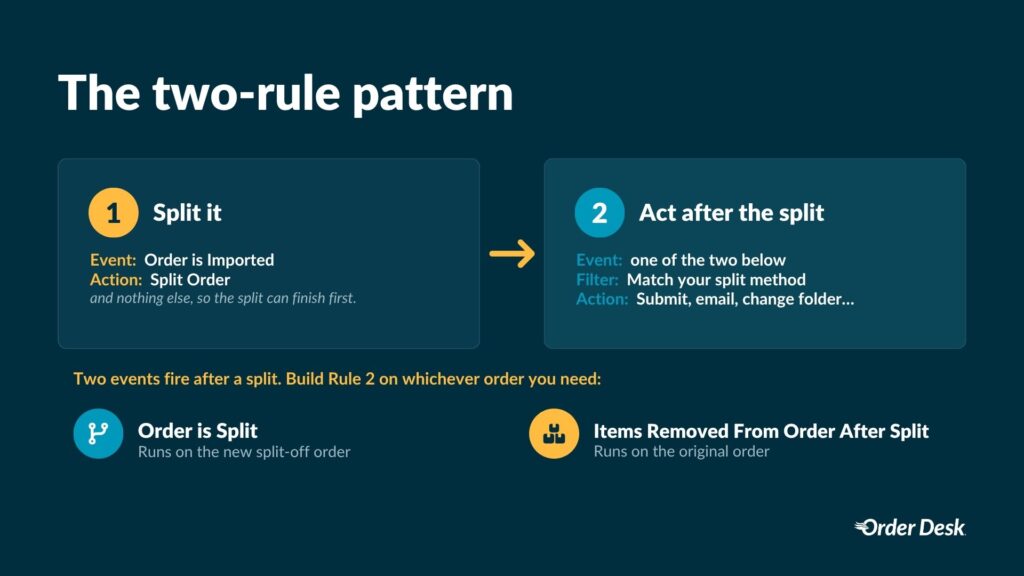
The cleanest way to split and process an order is with two separate rules.
Trying to cram the split and every follow-up action into one rule is where things tend to get messy.
Rule 1: Split the order
Keep the first rule focused on the split.
- Event: Order is Imported
- Action: Split Order
That’s it.
The split needs to finish before another rule tries to route, move, tag, or otherwise act on the resulting orders.
Rule 2: Act on the split orders
Once a split happens, Order Desk fires two events:
- Order is Split runs on the new order created by the split
- Items Removed From Order After Split runs on the original order
Choose the event that matches the order you need to work with, add the appropriate filters, and then set your next action.
That second rule could send the new order to a particular fulfiller, move the original order into another folder, or continue any other workflow required after the split.
Keeping the split and the follow-up action separate gives the app time to complete each step in the right order. It also makes the workflow much easier to troubleshoot later.
Watch Zain build a rule live
Understanding Event, Filter, and Action is one thing. Watching the entire process inside the Order Desk app makes it much easier to see how the pieces work together.
Watch Zain build a complete rule from scratch, showing you where to find each setting, what to select, and how to check that it works.
You can also watch the full Rule Builder webinar replay here.
Build your first rule
You’ll find the Rule Builder under the Settings heading in your Order Desk sidebar.
Start with one repetitive task.
Maybe you route every Canadian order to the same fulfiller. Maybe you tag every order containing a particular SKU. Maybe you keep moving incomplete orders into the same review folder by hand.
Choose the event. Add the filters. Set the action.
Then let the rule take that job off your plate.
If you need more help using the Rule Builder, read our full guide here.